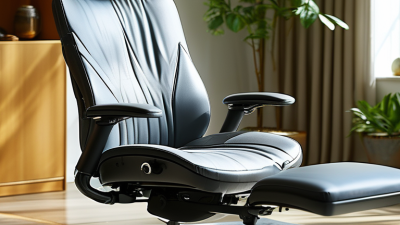
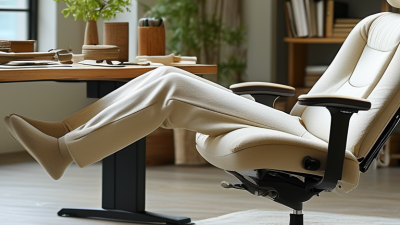
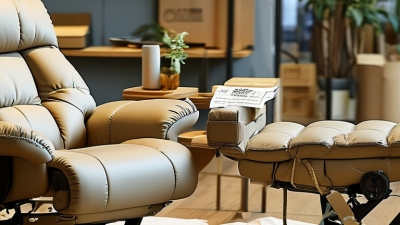
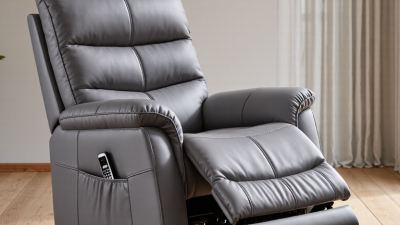
Ergonomic office recliners are work chairs designed to support seated tasks while allowing the backrest to lean back. Unlike a basic lounge recliner, a well-designed model typically combines a supportive seat, adjustable backrest, and controls suited to desk work. Depending on the chair, users may also find adjustable lumbar support, armrests, headrests, and a footrest. The exact features vary. The word “ergonomic” is not a guarantee that a chair will fit every body or working style.
Picture a desk worker shifting position after a video call, then reclining slightly to read notes. A suitable chair should let them keep their feet supported and reach the desk without stretching. Its adjustments should be easy to find and use, not hidden behind a maze of levers. Comfort is personal. Seat depth, back support, and recline tension can feel different from one person to another, so trying a chair matters when possible. Even the term can sound more precise than it is. A recliner may feel plush yet offer limited support for long work sessions, while a simpler chair may fit better. This guide explains what ergonomic office recliners are, which features deserve attention, and how to judge whether one suits your desk, space, and daily routine. A chair is only part of the picture; movement and regular breaks still matter.
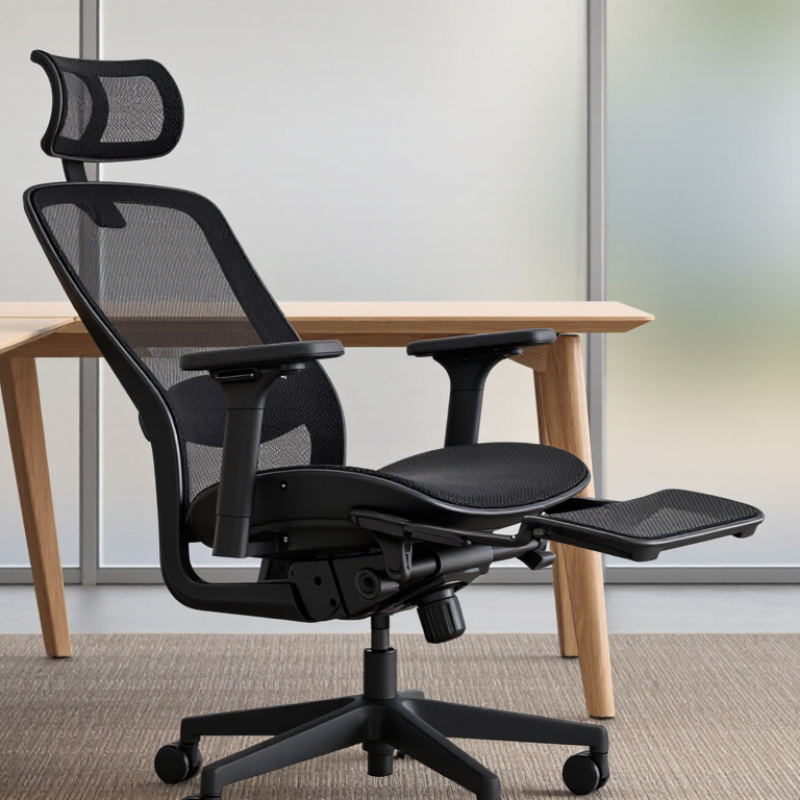
An ergonomic office recliner is a work chair designed to support the body while allowing the user to lean back. It usually has an adjustable backrest, seat height, armrests, and sometimes a footrest. The aim is to make desk work more comfortable without forcing one rigid posture. A supportive chair should let the feet rest securely, keep the arms relaxed, and provide contact along the back. A recliner is not automatically ergonomic. Its value depends on how well its adjustments fit the person and the desk. That distinction matters.
The purpose is to help users change position during the workday while keeping essential tasks within reach. For example, someone might sit upright to type, then recline slightly to read a document on screen. The movement can feel relieving, but it does not replace breaks or good desk setup. Fit comes first. Seat depth should leave a small gap behind the knees, and the screen should remain easy to view when leaning back. Some footrests can interfere with close desk work, and a comfortable reclined angle may not suit every task. Choosing a chair takes a little trial and error. The most useful setting is one that supports the work, not just the showroom pose.
An ergonomic office recliner pairs adjustable support with a backrest that moves as you lean. The seat pan should support your thighs without pressing behind your knees. Lumbar support should meet the inward curve of your lower back, while armrests let your shoulders relax. A headrest can help during deeper recline, but it should not push your chin forward. Small fit details matter.
OSHA’s Computer Workstations eTool recommends adjustable seating, back support, and a stable foot position. In practice, set the seat so your feet rest flat and your knees bend comfortably. Recline mechanisms vary: a synchro-tilt links seat and back movement, while a knee-tilt pivots closer to the knees. Tension controls how much effort leaning back takes; a lock holds a chosen angle. Test these controls slowly. A smooth mechanism is useful, but smoothness alone does not prove good support.
Look for a base that stays stable through the recline range and controls you can reach without twisting. The fit is rarely perfect for every body, and a headrest that suits one person may feel intrusive to another. WHO’s 2020 physical activity guidelines recommend adults get 150–300 minutes of moderate-intensity activity weekly. A recliner can change posture, not replace movement. That distinction is easy to overlook.
An ergonomic office recliner can shift between focused typing, reading, and short recovery breaks. For typing, set the backrest near upright, keep your lower back supported, and place both feet flat. A slight recline can suit reading or video calls; Cornell University Ergonomics guidance suggests a backrest angle of about 100–110 degrees. The exact setting depends on your body and desk. Small adjustments matter.
The chair should move with the task, not pull you away from it. When leaning back, check that the screen remains easy to see and your arms can rest without reaching. A footrest may help if your feet lose contact with the floor.
One useful caution: recliners do not prevent every ache. The U.S. Bureau of Labor Statistics reported 27.2 musculoskeletal-disorder cases involving days away from work per 10,000 full-time private-industry workers in 2023. That figure covers many jobs and is not evidence that a particular chair prevents injury. Sitting still too long can still feel stiff.
Tips: Adjust the seat and backrest before starting work. Keep the screen in view as you recline. Change position every so often; comfort is not a fixed angle. And if a setting feels strained, rethink it. A “perfect” posture may not stay perfect all day.
What Are Ergonomic Office Recliners?
Ergonomic Benefits and Potential Limitations
An ergonomic office recliner combines a supportive seat with an adjustable backrest, and sometimes a footrest. Its value depends on fit, not the word “ergonomic” on a label. OSHA’s Computer Workstations eTool recommends lumbar support, adjustable seating, and a posture that lets feet rest securely. A small recline can ease pressure from an upright, rigid posture. So can changing position. The chair should still let you reach your desk without leaning forward or stretching for the keyboard.
Comfort has limits. A recliner may support the lower back, but it cannot replace movement or correct a poor desk setup. The U.S. Department of Health and Human Services’ 2018 Physical Activity Guidelines report says about 80% of adults and adolescents do not get enough physical activity. That figure is not specific to office workers, or to recliner users. Still, it puts passive seating in perspective. During a long work session, a footrest can feel pleasant, while making it harder to sit close to a desk. Check that your arms can rest comfortably and your screen stays in view. Get up regularly. No chair solves every body’s needs, and a plush seat can disguise an awkward posture for a while.
| Ergonomic Feature | Potential Benefit | Potential Limitation | Practical Guidance |
|---|---|---|---|
| Adjustable backrest and recline | Changing the backrest angle can provide posture variation and may reduce the need to hold one upright position continuously. | A reclined position may make desk work harder if the screen, keyboard, or desk cannot be adjusted to match it. | Choose a chair with a stable, adjustable recline and use a position that keeps the screen easy to view and arms relaxed. |
| Lumbar support | Support that fits the lower back can help maintain a comfortable spinal posture while seated. | Fixed or poorly positioned support may not fit every user; extra cushioning can also push the back forward. | Look for adjustable support where possible, and check that it contacts the lower back without creating pressure. |
| Seat height and seat depth | A well-fitted seat can help keep feet supported and reduce pressure behind the knees. | Some recliners have bulky seats or limited adjustments, making a suitable fit difficult for users of different body sizes. | When seated, aim for supported feet and space between the front edge of the seat and the backs of the knees. Use a footrest if needed. |
| Armrests | Appropriately positioned armrests can support the forearms and help keep the shoulders relaxed. | Armrests that are too high, too wide, or non-adjustable may raise the shoulders or prevent the chair from fitting close to a desk. | Adjust armrests so the shoulders remain relaxed and the elbows stay comfortably near the body; confirm they fit under or alongside the desk. |
| Footrest or leg support | A footrest can support the legs when reclining or when the chair height leaves the feet unsupported. | An attached footrest may limit movement or interfere with positioning the chair at a workstation. | Use leg support when reclining, but ensure it does not force the knees or hips into an uncomfortable position. |
| Desk and screen compatibility | A suitable setup can allow the chair's support and recline features to be used while keeping work materials accessible. | A large or deeply reclining chair may place the user too far from the desk or make the screen awkward to view. | Check the chair's dimensions against the desk and work area. Position the screen so it can be viewed without prolonged neck bending. |
| Movement and work habits | An adjustable chair can make it easier to vary posture during the day. | Comfort may encourage prolonged sitting; a recliner does not replace movement breaks or workstation adjustments. | Change positions regularly and take brief movement breaks. No single chair posture is ideal to maintain all day. |
| Best suited use | A recliner can be useful for mixed tasks that include reading, calls, or short periods of relaxation between focused work. | Not every recliner provides the adjustability or desk alignment needed for extended keyboard and mouse work. | Prioritize fit, adjustability, and compatibility with the actual work tasks rather than recline alone. |
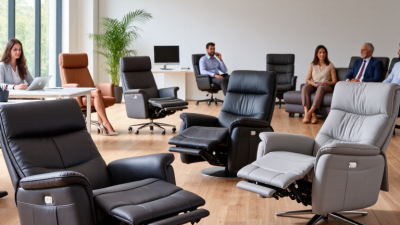
Ergonomic office recliners combine a supportive work chair with a backrest that tilts for brief rest periods. Some use a simple tilt mechanism, while others offer adjustable recline tension and a locking position. High-back models may support the head and shoulders; compact designs often suit smaller rooms. A built-in footrest can feel comfortable, but it may interfere with a desk or restrict leg movement.
Small details matter. Check that the seat height lets your feet rest flat and your knees bend comfortably. Adjustable lumbar support should meet the curve of your lower back, rather than pushing against it. Seat depth matters, too: leave a small gap between the seat edge and the backs of your knees. Try the controls. They should be easy to reach while seated.
Match the recliner to your work habits and room dimensions. If you type for long periods, prioritize stable support and a forward working posture, not just deep reclining. Measure the chair when fully extended, and check whether its arms fit beneath your desk. Upholstery affects comfort: breathable fabric may feel cooler during long sessions, while smooth surfaces are easier to wipe clean. A showroom test can help, though a few minutes may not reveal pressure points that appear later.